Timeline & Deadlines
Track every important date in your case—from initial injury to final decision. Never miss a filing deadline with automatic reminders and jurisdiction-aware calculations.
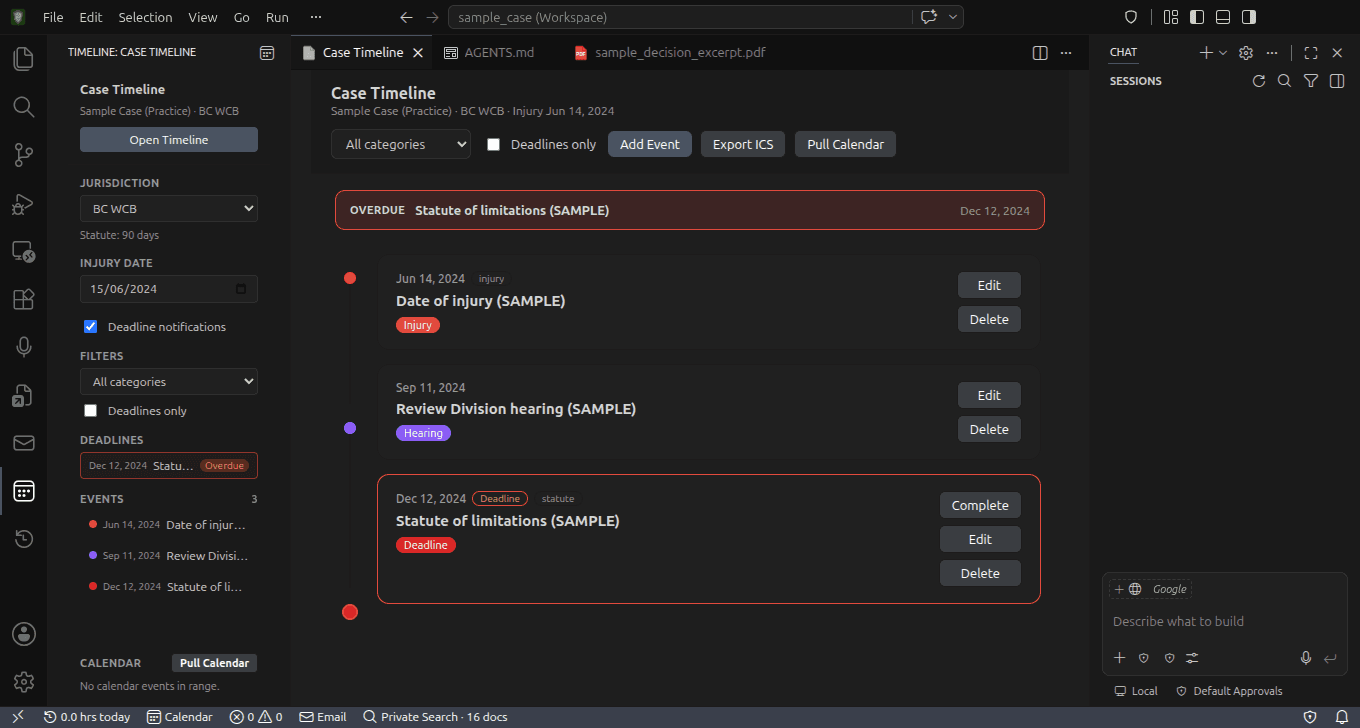
Video Tutorial
Learn how to add events to your timeline by watching our step-by-step video guide. For more tutorials, visit our YouTube channel.
Event Tracking
Log injuries, medical visits, hearings, and decisions chronologically
Deadline Alerts
Automatic reminders for upcoming deadlines and statute limits
12 Jurisdictions
Pre-configured deadlines for Canadian and US workers' comp boards
Opening the Timeline
Access your case timeline in three ways:
- Keyboard: Press
Ctrl+Shift+T - Command Palette:
F1→ "Open Case Timeline" - Activity Bar: Click the calendar icon in the left sidebar
Adding Events
Watch the video tutorial for a visual walkthrough of adding timeline events.
- Open the Timeline
- Click "+ Add Event" in the toolbar
- Fill in the event details
- Click Save
Event Fields
| Field | Required | Description |
|---|---|---|
| Date | ✅ | When the event occurred (YYYY-MM-DD) |
| End Date | — | For date ranges (e.g., hospitalization period) |
| Title | ✅ | Brief event name |
| Category | ✅ | Type of event (see below) |
| Description | — | Detailed notes about the event |
| Is Deadline | — | Mark as deadline for tracking and alerts |
| Reminder Days | — | When to remind (e.g., 7, 3, 1 days before) |
| Tags | — | Custom labels for filtering |
Event Categories
Deadline Tracking
Deadlines are the most critical events in your appeal. The Timeline has special features for tracking them.
Creating a Deadline
- Add an event with a future date
- Check the "Is Deadline" checkbox
- Set Reminder Days (e.g.,
7, 3, 1for reminders at 7, 3, and 1 day before) - Save the event
Deadline Status Indicators
Automatic Deadline Generation
When you add a Decision event, the Timeline can automatically generate related appeal deadlines based on your jurisdiction's rules:
Example for BC WorkSafeBC:
- → Review Division Appeal — 90 days from decision
- → WCAT Appeal — 30 days from decision
- → Reconsideration Request — 75 days from decision
Jurisdictions
Select your jurisdiction to get accurate statute of limitations and automatic deadline calculations.
Setting Your Jurisdiction
- Open the Timeline
- Click the jurisdiction badge in the toolbar
- Select your region from the dropdown
Supported Jurisdictions
🇨🇦 Canada
- British Columbia WorkSafeBC (90 days)
- Ontario WSIB (30 days)
- Alberta WCB (60 days)
- Quebec CNESST (30 days)
- Manitoba WCB (30 days)
- Saskatchewan WCB (60 days)
- Nova Scotia WCB (30 days)
🇺🇸 United States
- California DWC (365 days)
- Texas DWC (365 days)
- New York WCB (730 days)
- Florida DWC (730 days)
- Washington L&I (60 days)
Days shown are the default statute of limitations for each jurisdiction.
Linking Documents
Connect documents to timeline events for easy reference and complete case documentation.
Method 1: From File Explorer
- Right-click a file in the Explorer sidebar
- Select "Link to Timeline Event..."
- Choose the event to link
Method 2: From Event Editor
- Edit an event
- Use the document picker to add files
- Save the event
Tip: Linked documents appear as clickable chips on event cards. Click them to open the document directly.
Notifications
The Timeline sends automatic notifications to help you stay on top of your case.
Notification Types
| Type | When Triggered |
|---|---|
| Deadline Upcoming | Deadline approaching (based on reminder days) |
| Deadline Overdue | Deadline passed without completion |
| Document Expiring | Medical report older than configured threshold |
| Document Missing | Event without linked documents |
| Statute Warning | Statute of limitations approaching |
Notification Preferences
Configure default notification behavior:
- Reminder Days: Default is 7, 3, 1 days before deadline
- Document Expiration: Alert when medical docs are 6+ months old
- Statute Warning: Alert 30 days before statute expires
Exporting to PDF
Generate a professional PDF timeline for filings, meetings, or records.
- Open the Timeline
- Click "Export PDF" in the toolbar
- The PDF downloads automatically
PDF Contents
- Case header (name, jurisdiction, injury date)
- Chronological event list with categories
- Deadline status indicators
- Linked document references
- Tags and notes
AI Timeline Management
The AI assistant can manage your timeline using built-in timeline_* tools in Agent mode:
| Tool | What it does |
|---|---|
timeline_add_event | Add a new timeline event |
timeline_update_event | Update an existing event |
timeline_delete_event | Remove an event |
timeline_get_events | List events with optional filters |
timeline_link_document | Link a workspace file to an event |
timeline_get_deadlines | Query upcoming or overdue deadlines |
Try these prompts — or see Agent Tools for the full list:
"Add the medical appointment from dr_smith_report.pdf to my timeline"
→ Extract dates from documents and add events
"What deadlines are coming up in the next 30 days?"
→ Query upcoming deadlines
"Mark the Review Division Appeal deadline as complete"
→ Update event status
"Link the injury report to the initial injury event"
→ Connect documents to events
Important: Always verify AI-added events. Double-check dates, especially for deadlines, before relying on them.
Timeline Storage
Timeline data is stored in .safeAppeals/timeline.json under your workspace root. This file is created automatically when you first use the Timeline. Case context for the agent lives in the root AGENTS.md brief (not a separate .caseinfo file).
📁 Your Case Folder/
├── 📄 AGENTS.md
├── 📁 .safeAppeals/
│   └── 📄 timeline.json   ← Timeline data
├── 📁 medical_reports/
├── 📁 evidence/
└── ...
Tips & Best Practices
Keyboard Shortcuts
| Action | Shortcut |
|---|---|
| Open Timeline | Ctrl+Shift+T |