How SafeAppeals Uses AI
The AI assistant helps you research, draft, and organize case work. It is a drafting aid—not legal advice and not a court-ready filing.
Important Reminder
AI can make mistakes, including citing non-existent cases. Always verify legal citations and consult with a licensed attorney before filing any documents.
Data Flow and Confidentiality
Your case files stay on this computer. When you ask the AI assistant a question, the text you send — and any documents you attach — go to SafeAppeals Cloud to generate the answer, then to the AI model provider. Your prompts and documents are used only to generate your answer and are handled under the model provider's retention policy. You remain responsible for reviewing everything the assistant produces: its output is a drafting aid, not legal advice and not a court-ready filing. Read our Privacy Policy for details.
Client-Consent Guidance for Your Practice
If you represent clients, consider whether your engagement letters, privacy notices, and local ethics rules (including ABA Formal Opinion 512 and Florida Bar Ethics Opinion 24-1 guidance) require informing clients when AI tools process confidential information. SafeAppeals keeps case files on the local machine by default; only the prompts and attachments you send in chat leave the device for model inference.
- Disclose AI use when your jurisdiction or engagement terms require it
- Do not paste sealed, privileged, or restricted material unless your client engagement allows it
- Review every citation and factual claim before relying on assistant output
- Prefer approve-before-write settings when working in live case workspaces
Basic Usage
Opening the Chat
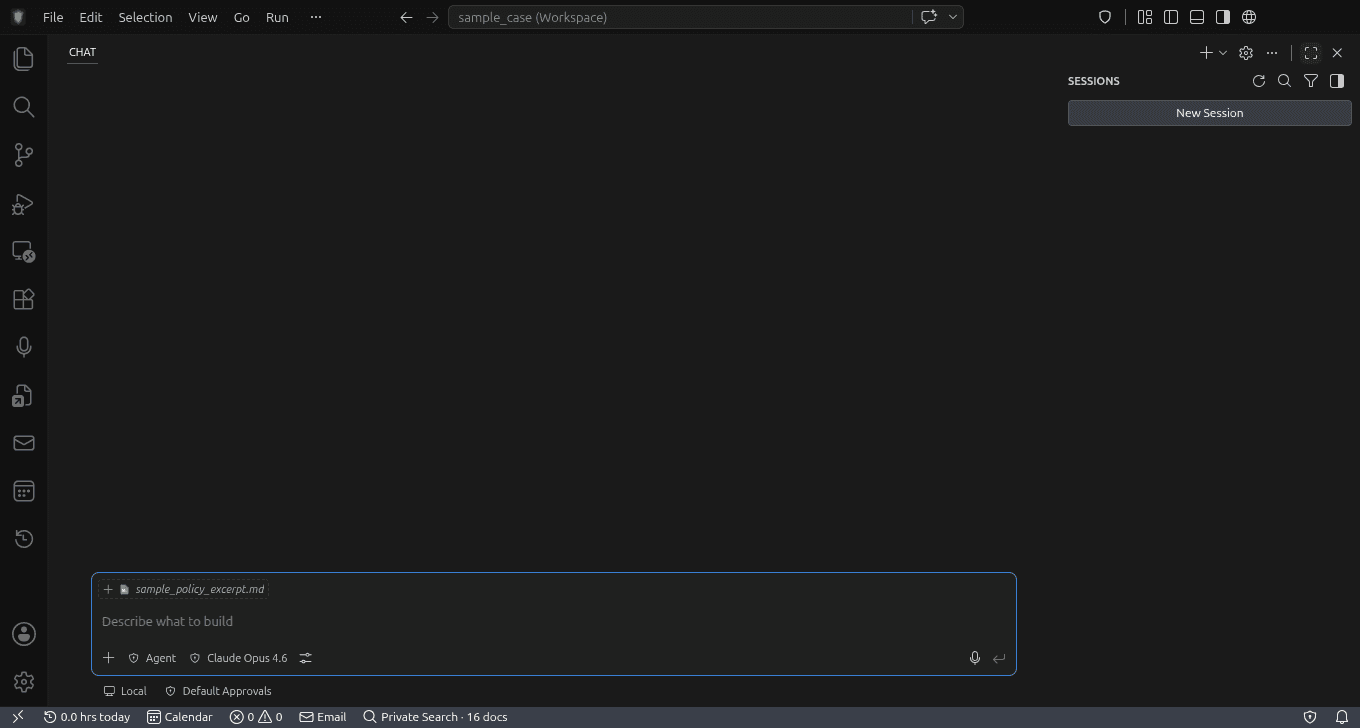
Access the AI assistant in several ways:
- Click the Chat icon in the left activity bar
- Press
Ctrl+Lto focus the chat input - Press
Ctrl+Shift+Lto open the chat with your current selection
Sending Messages
- Type your message in the input field
- Press
Enterto send (orShift+Enterfor a new line) - Wait for the AI to respond—longer responses may take a few seconds
Adding Context
Help the AI understand your needs by providing context:
- @-mention files — Type
@and select files to include in your message - Select text first — Select text in the editor, then press
Ctrl+Shift+L - Describe your case — The more context you provide, the better the response
Modes
SafeAppeals offers modes tailored for legal work (built-in Ask and Agent, plus custom Plan):
Ask Mode
Conversational help for exploration, drafting assistance, and quick questions.
Features
- • Natural Q&A and iterative drafting help
- • Safe explore-style research without a formal plan file
- • Ideal for short prompts and clarifying case details
- • Lower risk than autonomous multi-step execution
Example prompt
"Help me draft an introduction paragraph for my appeal letter that emphasizes the medical evidence."
Agent Mode
Autonomous multi-step work with full tool access when you are ready for action.
Features
- • Full access to built-in tools
- • Autonomous multi-step task execution
- • File organization and case workflow actions
- • Best for executing an approved plan or a clearly scoped task
Example prompt
"Analyze all documents in my evidence folder, create a timeline of events, and identify gaps in my evidence."
Plan Mode
Plan-first: research, clarify, write a reviewable plan, then hand off to Agent.
Features
- • Workspace research before any case-file edits
- • Clarifying questions when assumptions would change the approach
- • CreatePlan writes .safeAppeals/plans/*.plan.md for review
- • Start Implementation switches to Agent after you approve
Example prompt
"Plan how to reorganize the evidence folder and build a timeline before changing any files."
Changing Modes
- Look for the mode dropdown at the top of the chat sidebar
- Click to open the dropdown
- Select Ask, Agent, or Plan
For the full Plan Mode workflow (CreatePlan, reviewPlan, plan file locations, and legal gitignore guidance), see the Plan Mode guide.
Recommendation: Use Ask for exploration and drafting help, switch to Plan when the work needs a written approach first, and use Agent for complex multi-step workflows where you trust the AI to take actions autonomously.
Agent Tools
In Agent mode, the assistant invokes built-in tools from SafeAppeals extensions — email search and drafts, billing timer, Word/Excel editing, timeline events, Private Search, and more. Sensitive actions often ask for your confirmation first.
- Email — Read, organize, tag, link to cases, and create drafts. The agent cannot send; you send from the Email Dashboard.
- Documents — Create and edit
.docxand.xlsxfiles, open in the visual editor or headlessly. - Timeline & timer — Add events, query deadlines, start/stop the legal billing timer.
See the full catalog in the Agent Tools guide.
Private Search vs Cloud Chat
Private Search is separate from cloud chat. It indexes case files and core_references/ on this computer so you can find passages without uploading whole files for every search. Setup and optional model installs ask for consent first. Searching the private index does not spend credits and does not require the AI to run.
When you use Ask or Agent mode, the assistant can call Private Search tools (reference scope, case-file scope, or both) after the index is set up. Cloud chat still only sends the text and attachments you choose when you ask a question. See Core References & Private Search.
Quick Edit (Ctrl+K)
Quick Edit is a powerful feature for making inline changes to your documents:
- Select the text you want to modify in the editor
- Press
Ctrl+K - Describe the change you want (e.g., "make this more formal")
- Press
Enterto apply - Review the changes and accept or reject them
Quick Edit Ideas
Improve clarity
Rewrite this to be clearer and more concise
Add formality
Make this more formal and professional
Expand content
Add more detail and supporting points
Fix errors
Fix any grammar or spelling mistakes
Add citation
Add a proper legal citation for this statement
Summarize
Condense this into a brief summary
Best Practices for Legal Research
Effective Prompting
- Be specific — Include jurisdiction, type of claim, and specific issues
- Provide context — Share relevant case details when asking for advice
- Ask for sources — Request citations and ask the AI to verify them
- Iterate — Follow up with clarifying questions
Verification Checklist
Before using AI-generated content:
- Verify all case citations exist in legal databases
- Confirm statutes and regulations are current
- Check that legal principles apply to your jurisdiction
- Review for any factual errors or inconsistencies
- Have a licensed attorney review before filing
Token Usage
Each message uses tokens from your credit balance. Token usage depends on:
- Input tokens — Your message length plus any files/context you include
- Output tokens — The length of the AI's response
- Model choice — Different models have different token costs
View your current balance in the Dashboard.
Next Steps
Was this page helpful?